If payroll at your shop starts with a group chat, you already know the problem. Somebody texts "worked 7 to 4 Tuesday" on Thursday night. Somebody else forgot to clock out and their sheet says 14 hours. Then Friday comes and you're adding it all up, working out overtime, and re-typing it for whoever does your payroll.
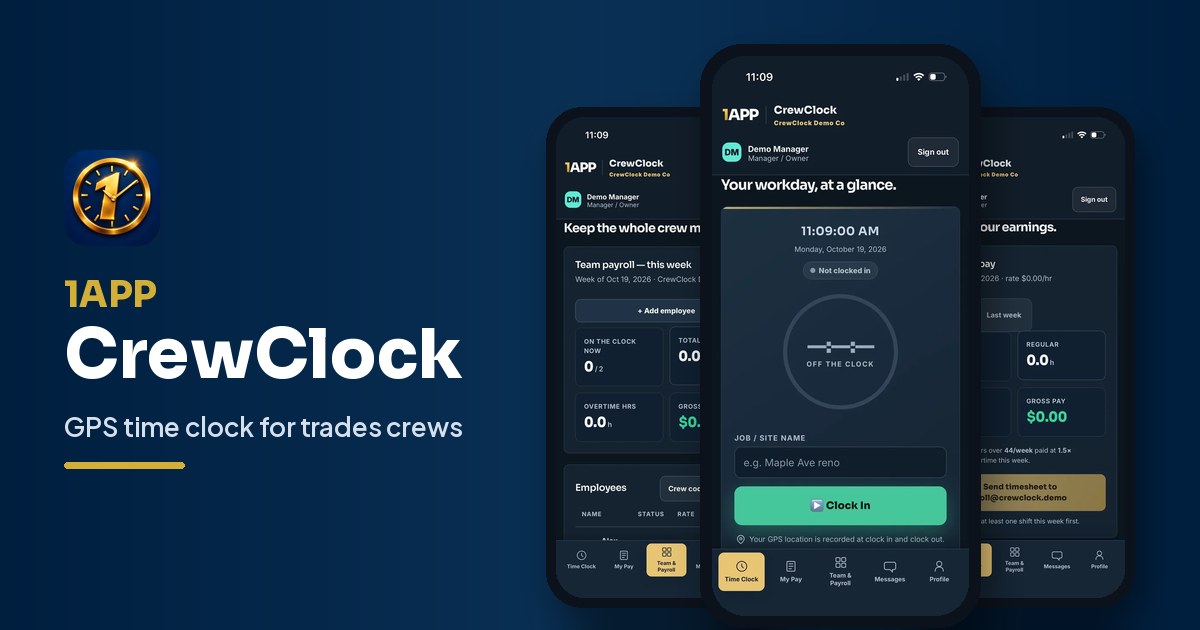
That's the job we built 1APP CrewClock for. It's a GPS time clock app for trades and service crews, and it's now on Google Play and the App Store in Canada and the US.
Here's what it does, what it costs, and what it doesn't do.


Why paper timesheets and texted hours cost you
Paper and texts aren't evil. They just make it hard to check anything. Hours get remembered days later and rounded. A missed clock-out turns into an argument nobody can settle. And whoever runs payroll spends Friday night doing math that a phone could do.
None of that needs a big software rollout. It needs a punch clock your crew will actually use, and a weekly total you can trust.
How CrewClock works on the job site
The setup is split on purpose:
- The owner sets up the company on the web. You pick a plan, start the trial through Stripe checkout on the CrewClock site, create your company and get a crew code.
- The crew only signs in on their phone. Each person signs in with your crew code, their name and a 4-digit PIN. They don't create an account, they don't pay and they never enter a card.
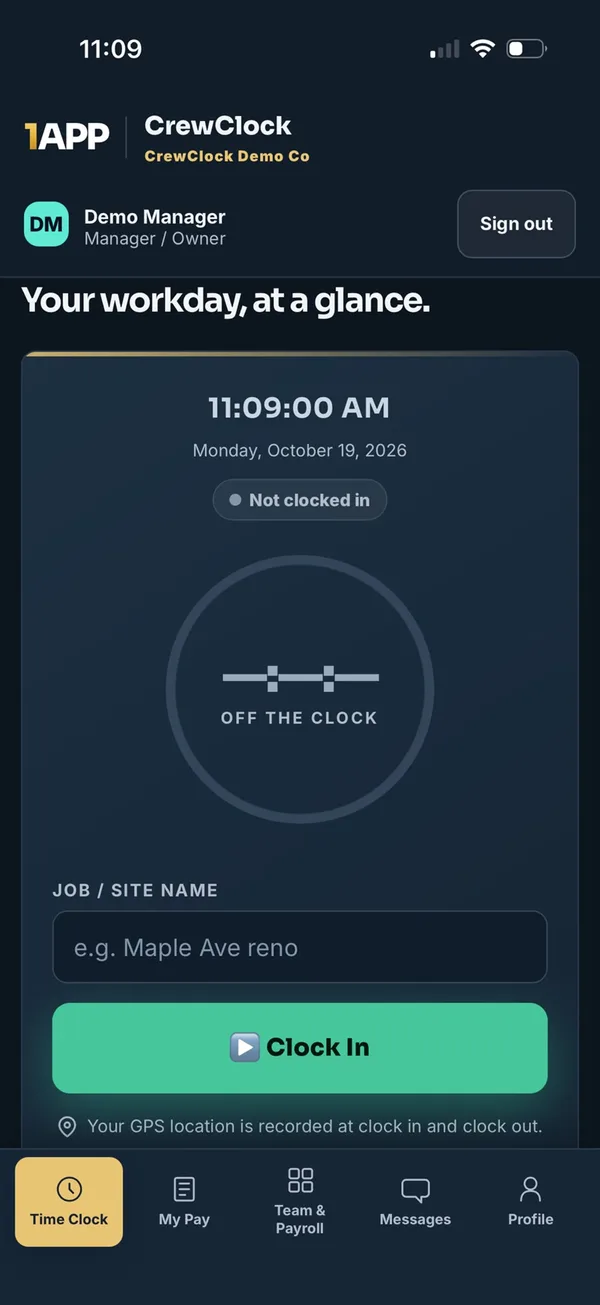
On the job, a crew member picks the job site and taps Clock In. CrewClock records the time and, if they allow location permission, the GPS location at that moment. Same thing at Clock Out. Managers get a live view of who's on the clock right now, plus job-site attendance flags.
Crew members who'd rather not install anything can also sign in from a phone browser with the same crew code, name and PIN.
Location at the punch, not all day
This is usually the first question from the crew, so here's the straight answer: CrewClock does not track anyone in the background. It records GPS only at clock-in and clock-out (when the crew member allows it), or when a manager deliberately captures a job-site location.
That makes it a much easier conversation with your guys. You're not watching where they drive at lunch. You're getting proof of where a shift started and ended.
Weekly hours, overtime and pay estimates
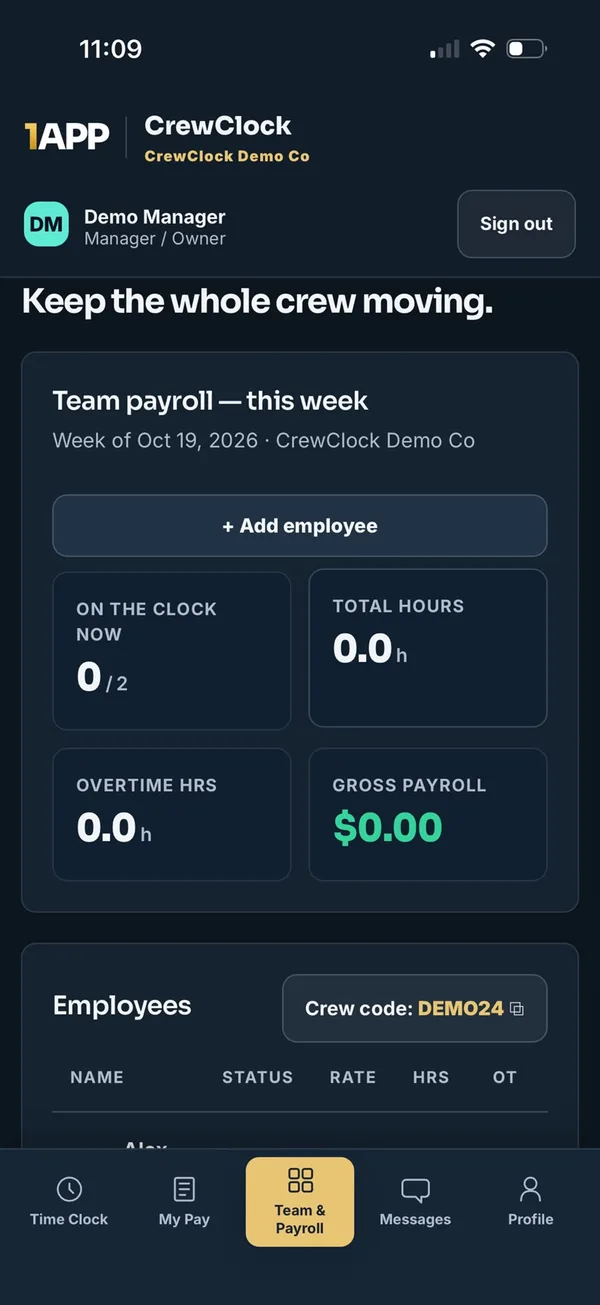
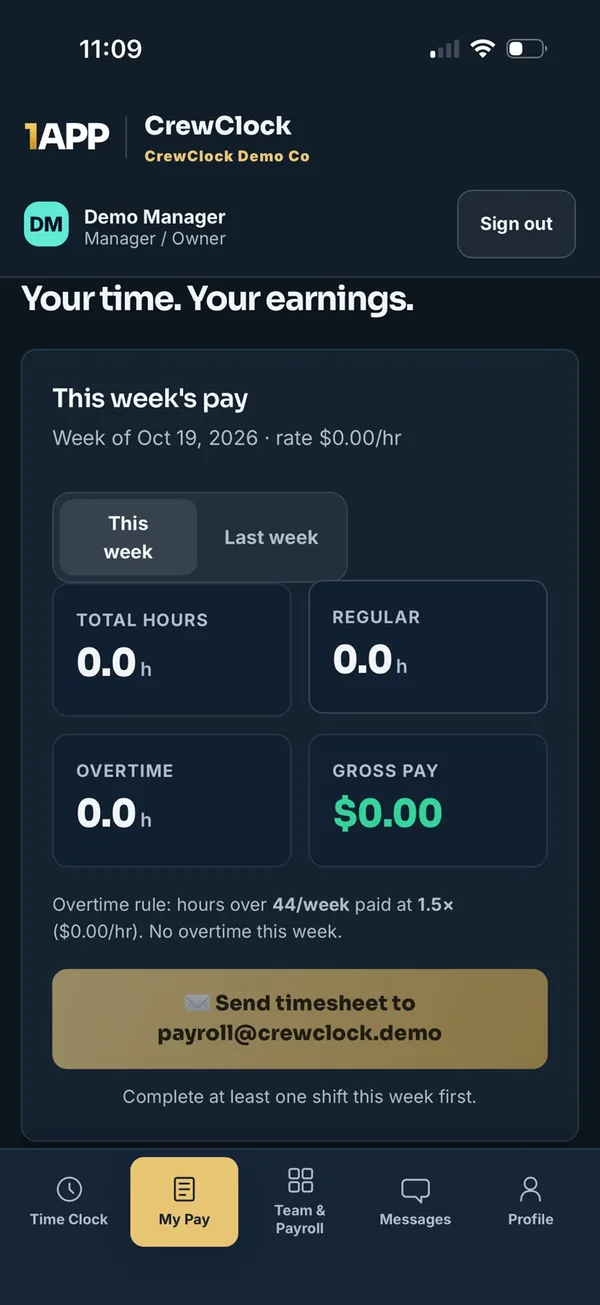
Every punch rolls up into the week. You see total hours, overtime and gross-pay estimates for the whole crew on one screen, and each employee sees their own hours and estimated pay. That alone cuts down on "how many hours did I get?" calls.
You set your overtime threshold and multiplier once, and CrewClock does the math every week. That matters in Canada because overtime rules depend on where you are and what kind of work you do. In Ontario, for example, most employees get overtime after 44 hours in a work week under the Employment Standards Act. Other provinces and some industries use different rules, so set CrewClock to match what applies to your business. Check with your bookkeeper if you're not sure.
Payroll-ready timesheets in one tap
When the week's done, a crew member sends a secure timesheet link straight to the payroll person you choose. The link expires. Nobody re-types hours from a photo of a notebook.
To be clear about what this is: CrewClock doesn't replace your payroll software. It organizes accurate hours, overtime and gross-pay estimates and gets them to your payroll person. Your payroll provider or bookkeeper still handles deductions, remittances and actually paying your team.
Catch the forgotten punch before Friday
You set regular workdays, start and end times, grace periods and a long-shift threshold. From there:
- Crew members get reminders when they forget to clock in or out.
- Long open shifts trigger a warning for the crew member and the manager.
- Managers see active exceptions so they can fix them before payroll.
Reminders never create or close a punch on their own. A person still decides what the real hours were.
Crew messaging that stays with the job
CrewClock also includes private, company-only messaging. Site updates stay out of personal group chats, messages sync across the crew's phones, and block and report controls are built in.
What CrewClock costs
One subscription covers the whole company. Every plan includes every feature; you're choosing crew size. User limits include the owner.
| Plan | Users | Price |
|---|---|---|
| Crew | Up to 5 | CA$29.99/month |
| Team | Up to 10 | CA$39.99/month |
| Company | Up to 20 | CA$49.99/month |
Prices are in Canadian dollars, plus applicable taxes. Checkout includes a 14-day free trial with a card required. You won't be charged until the trial ends, and you can cancel any time before then. Owners can update or cancel from Manage billing in the CrewClock web app. The phone apps don't show prices or take payment.
Is CrewClock a fit for your crew?
It's probably a good fit if:
- Your crew moves between job sites and hours come in by text or paper
- You or your bookkeeper spend time every week adding up hours and overtime
- You want proof of when and where shifts started, without tracking people all day
- You've got 20 people or fewer, owner included
It's probably not the right tool if you need a full payroll system that pays people and handles deductions. CrewClock feeds your payroll; it doesn't run it.
See it before you set it up
See CrewClock before you set it up
Want to see CrewClock running with demo data, or talk through how it fits next to your payroll? book a free 15-minute call with the 1APP team
Book a free 15-minute call. We'll show you the owner setup, the crew sign-in and a weekly timesheet. Then you decide if it's worth trying.
Want to look at the plans first? Everything's on the CrewClock page.